
Windows 11 Tips That Will Make Your Laptop Faster. Leave a comment
Has your laptop started taking longer to boot up? Do applications freeze, or does everything feel slower than when it was new?
If you’re using Windows 11, the good news is that you may not need to replace your laptop just yet. Over time, every computer accumulates temporary files, unnecessary startup programs, outdated software, and background processes that gradually reduce performance. Fortunately, Windows 11 includes several built-in tools designed to keep your system running efficiently—you just need to know where to find them.
Whether you use your laptop for work, school, business, or gaming, these Windows 11 tips can help you restore speed, improve responsiveness, and extend your device’s lifespan.
Why Does a Windows 11 Laptop Slow Down?
Many people assume that a slow laptop means the hardware is failing. In reality, software is often the biggest culprit.
Every time you install a program, browse the web, or download files, your laptop stores data in the background. Some applications are configured to launch automatically every time Windows starts, while others continue running even when you’re not actively using them. Over time, these processes consume memory, storage, and processing power, making your laptop feel sluggish.
The good news is that most performance issues can be resolved with regular maintenance.
1. Disable Unnecessary Startup Apps.
One of the quickest ways to improve boot time is by reducing the number of programs that launch when Windows starts.
Many applications automatically add themselves to the startup list during installation. While some, such as antivirus software, are essential, others only increase startup time without providing immediate value.
To check which apps start automatically:
Settings → Apps → Startup
Review the list and disable applications you don’t need immediately after signing in.
This simple adjustment can significantly reduce the time it takes for your laptop to become fully usable after turning it on.
2. Free Up Storage Space.
Your laptop needs free storage to operate efficiently. When the drive becomes nearly full, Windows has less room for temporary files, updates, and virtual memory, all of which can affect performance.
Start by removing files you no longer need, such as old downloads, duplicate photos, and large videos you’ve already backed up.
Windows 11 also includes a feature called Storage Sense, which automatically removes temporary files and empties the Recycle Bin when space is running low.
Navigate to:
Settings → System → Storage
Enable Storage Sense and let Windows manage unnecessary files automatically.
Keeping at least 15–20% of your storage free helps maintain smooth performance.
3. Keep Windows 11 Updated.
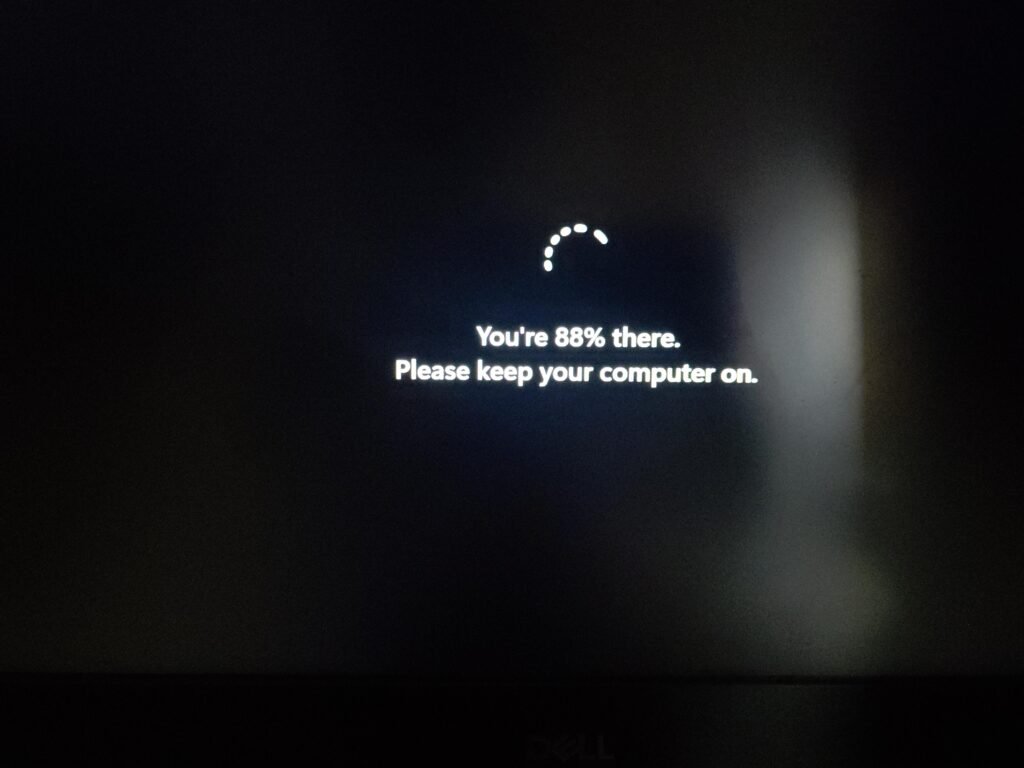
Some users postpone Windows updates because they worry about interruptions. However, updates often include performance improvements, bug fixes, and security patches that help your laptop run more efficiently.
Microsoft regularly optimises Windows 11 to improve compatibility with newer hardware and address issues discovered after previous releases.
To check for updates:
Settings → Windows Update
Install available updates and restart your computer when prompted.
Updating your operating system is one of the simplest ways to keep your laptop secure and responsive.
4. Restart Instead of Always Using Sleep Mode.
Many users close the laptop lid at the end of the day without restarting the system for weeks.
While Sleep Mode is convenient, it doesn’t completely refresh Windows. Background processes continue accumulating, and memory usage can increase over time.
Restarting your laptop clears temporary memory (RAM), stops unnecessary background processes, and allows Windows to start fresh.
If you use your laptop daily, restarting it every few days can noticeably improve performance.
5. Uninstall Programs You No Longer Use.
Unused software doesn’t just occupy storage—it may also install background services that continue running even when you’re not using the application.
Review your installed programs by visiting:
Settings → Apps → Installed Apps
If you haven’t used a program in months, consider uninstalling it.
Before removing software, make sure it isn’t required for your hardware or work applications.
6. Manage Background Apps.
Some applications continue syncing files, checking for updates, or running background tasks long after you’ve closed them.
These background processes consume RAM, processor resources, and battery power.
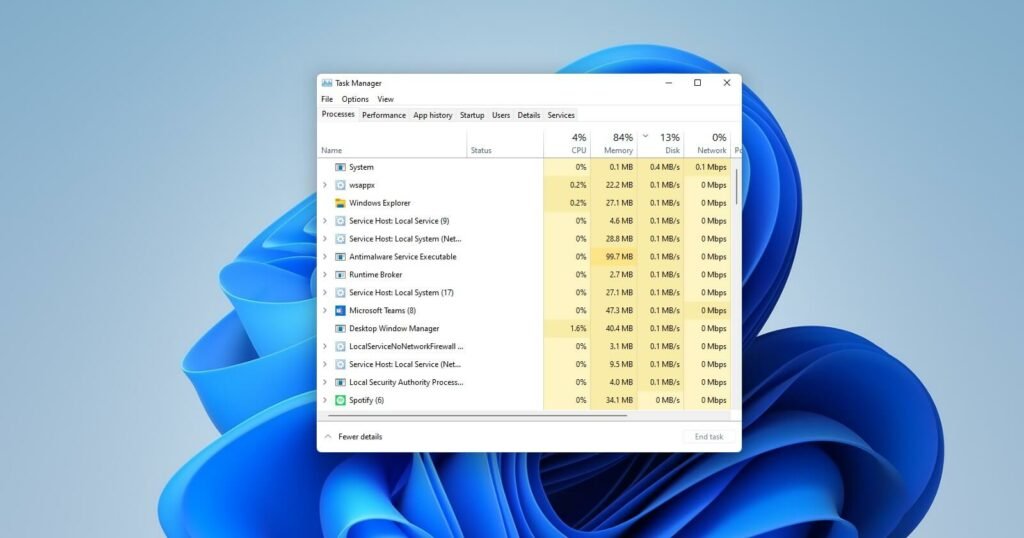
Open Task Manager by pressing Ctrl + Shift + Esc and review which applications are consuming the most CPU or memory.
If an app consistently uses large amounts of system resources without a clear reason, investigate whether it can be disabled, updated, or removed.
7. Check Your Laptop for Malware.
Malicious software doesn’t always announce its presence. Some forms of malware quietly use your laptop’s resources, slowing down performance while running hidden processes.
Windows 11 includes Microsoft Defender, which provides built-in protection against viruses and other threats.
Run a full system scan periodically, especially if you’ve downloaded files from unknown sources or noticed unexpected slowdowns.
Keeping your laptop secure also helps keep it fast.
8. Optimise Your Browser.
Many people spend most of their day inside a web browser, making browser performance just as important as Windows itself.
Having dozens of tabs open, installing unnecessary extensions, or allowing websites to run continuously in the background can consume significant amounts of memory.
Improve browser performance by:
- Closing tabs you no longer need.
- Removing unused extensions.
- Clearing cached files occasionally.
- Keeping your browser updated.
Even small changes can noticeably improve responsiveness.

9. Upgrade from an HDD to an SSD.
If your laptop still uses a traditional Hard Disk Drive (HDD), upgrading to a Solid State Drive (SSD) is one of the most effective ways to improve performance.
Unlike HDDs, SSDs have no moving parts, allowing them to read and write data much faster.
After upgrading to an SSD, you’ll likely notice:
- Faster boot times.
- Quicker application launches.
- Faster file transfers.
- Better overall responsiveness.
For older laptops, this upgrade often delivers the biggest improvement without replacing the entire device.
10. Add More RAM for Better Multitasking.
Random Access Memory (RAM) temporarily stores the data your laptop is actively using.
When you have too little RAM, Windows starts relying on storage as temporary memory, which is significantly slower.
If your laptop frequently slows down while using multiple applications, upgrading your RAM can make a noticeable difference.
As a general guide:
- 8GB RAM is suitable for everyday tasks and students.
- 16GB RAM is recommended for professionals, multitasking, and gaming.
- 32GB or more is ideal for video editing, software development, engineering, and other demanding workloads.
Before upgrading, confirm that your laptop supports additional memory and check the maximum RAM capacity specified by the manufacturer.
11. Maintain Your Battery and Cooling System.
Performance isn’t only affected by software. Heat also plays a significant role.
When a laptop becomes too hot, the processor automatically reduces its speed to prevent damage. This process, known as thermal throttling, can make your laptop feel much slower during demanding tasks.
To reduce overheating:
- Keep air vents free from dust.
- Use your laptop on a hard, flat surface.
- Avoid blocking ventilation openings.
- Consider using a cooling pad if you regularly perform resource-intensive work.
Proper cooling helps your laptop maintain consistent performance over time.
When Is It Time to Upgrade Your Laptop?
If you’ve tried these optimisation tips and your laptop still struggles with everyday tasks, the hardware may no longer meet modern software requirements.
Signs that it may be time for an upgrade include:
- Extremely slow performance despite maintenance.
- Inability to install current Windows updates.
- Frequent crashes or hardware failures.
- Insufficient memory or storage with no upgrade options.
- A battery that no longer holds a useful charge.
In these cases, investing in a newer laptop may provide better value than continuing to repair an ageing device.
Final Thoughts
A slow laptop doesn’t always mean you need a replacement. In many cases, a few simple adjustments within Windows 11 can dramatically improve performance, helping your device boot faster, respond more quickly, and handle everyday tasks with ease.
Regular maintenance—such as removing unnecessary software, managing storage, updating Windows, and monitoring background applications—keeps your laptop performing at its best. If your hardware allows it, upgrading to an SSD or adding more RAM can provide an even greater boost.
At Compvate, we believe that getting the most out of your technology starts with understanding how it works. Whether you’re looking for expert advice, genuine laptop upgrades, or a new device built for work, study, or gaming, our team is here to help you make the right choice.
Frequently Asked Questions (FAQs)
Common causes include too many startup applications, low storage space, insufficient RAM, outdated software, malware, or ageing hardware.
Yes. Replacing a traditional HDD with an SSD is one of the most effective upgrades, improving boot times, application loading, and overall system responsiveness.
Restarting your laptop every few days helps clear memory, stop unnecessary background processes, and apply updates, keeping Windows running smoothly.
For web browsing, office work, and online learning, 8GB is generally sufficient. If you frequently multitask or use demanding software, 16GB or more is recommended.
Yes. Windows updates often include performance enhancements, security patches, bug fixes, and compatibility improvements that help your laptop operate more efficiently.