
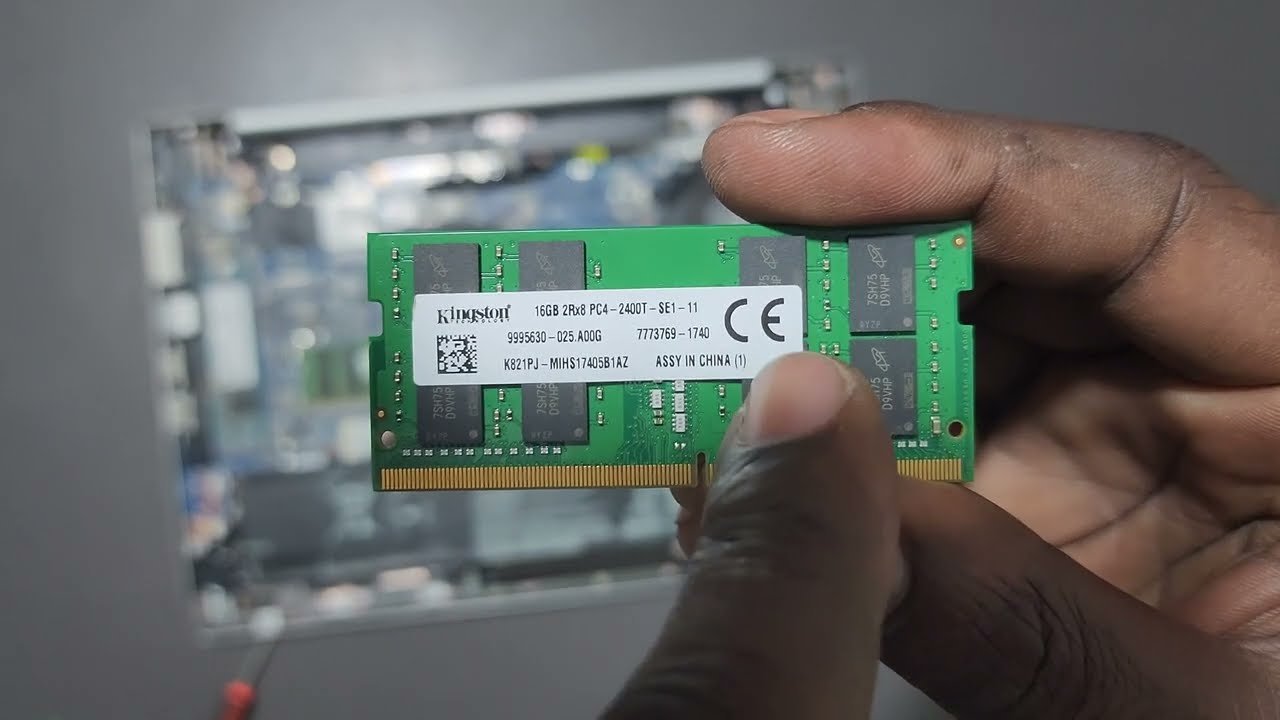
How to Upgrade 4GB RAM to 16GB: A Complete Guide. Leave a comment
If your laptop has only 4GB of RAM, you have probably noticed it slowing down.
Opening several browser tabs can become frustrating. Running multiple applications at once can make the laptop feel even slower.
Upgrading from 4GB RAM to 16GB RAM can make a noticeable difference, especially when multitasking.
However, you cannot simply buy any 16GB RAM stick and install it. Your laptop must support the upgrade, and the RAM must be compatible with the system.
Here is how to check everything before you spend money.
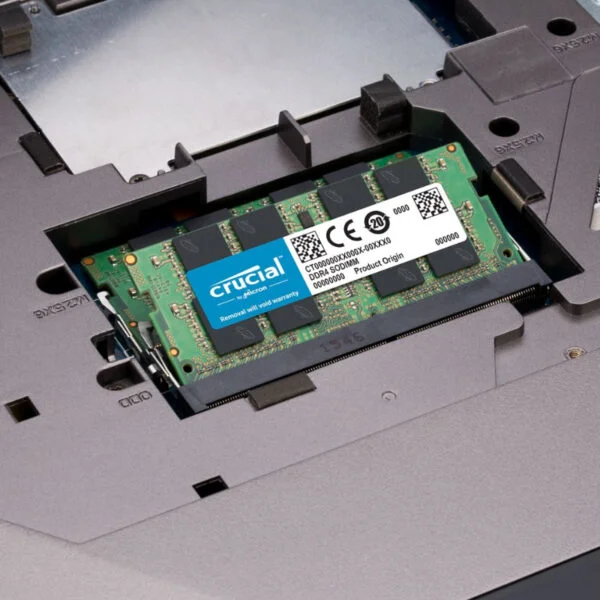
Can You Upgrade 4GB RAM to 16GB?
In many laptops, yes.
However, some laptops have RAM soldered directly onto the motherboard. In that case, you cannot remove the existing memory like you would with a standard RAM module.
Your laptop also needs to support at least 16GB of RAM.
Therefore, the first step is checking your laptop’s specifications.
How to Check if Your Laptop Supports 16GB RAM
Start by finding your exact laptop model.
You can usually find the model number on the bottom of the laptop. You can also check it through Windows system information.
Once you have the model, check the manufacturer’s specifications for:
- Maximum supported RAM
- Number of RAM slots
- RAM generation
- Supported RAM speed
- Whether the RAM is soldered
You can also use a RAM compatibility tool to identify suitable upgrades. Crucial’s Upgrade Selector, for example, allows you to search by computer manufacturer and model.
Check Whether Your RAM Is DDR3, DDR4, or DDR5
This is one of the most important things to check before buying RAM.
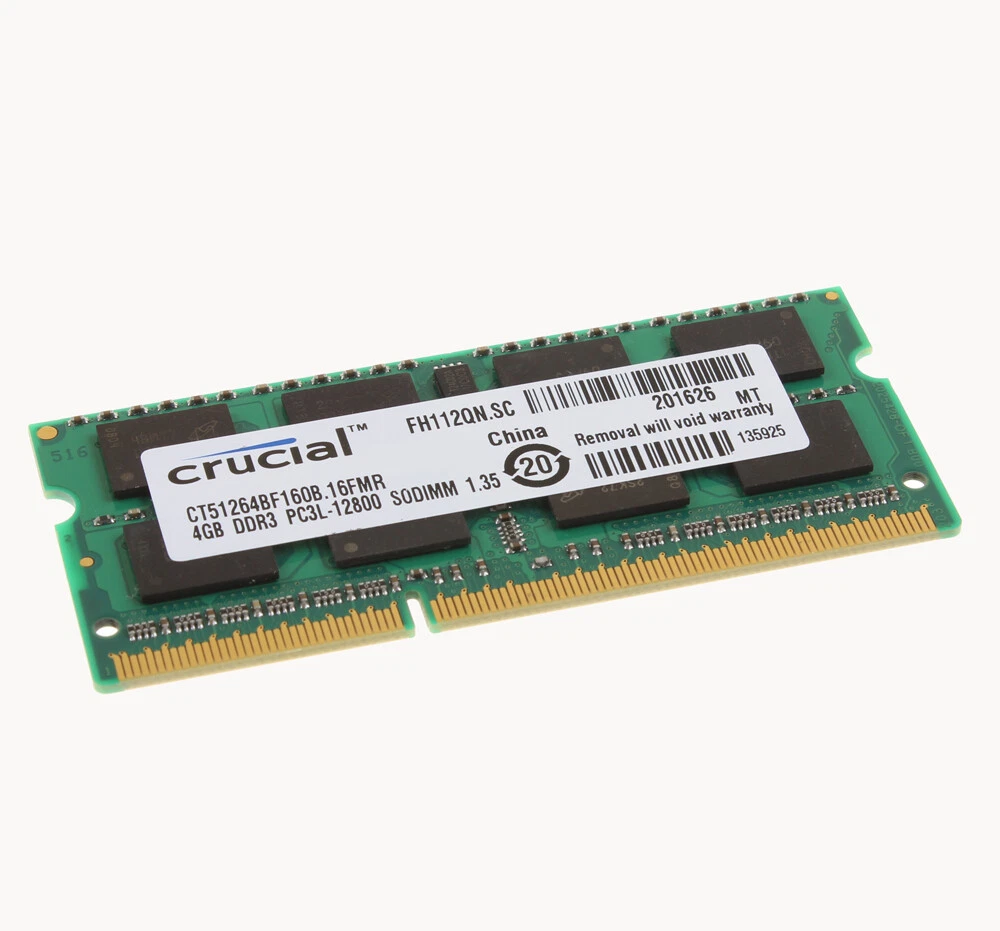
RAM comes in different generations, including DDR3, DDR4, and DDR5.
These generations are not interchangeable. For example, DDR5 RAM cannot be installed in a DDR4 slot.
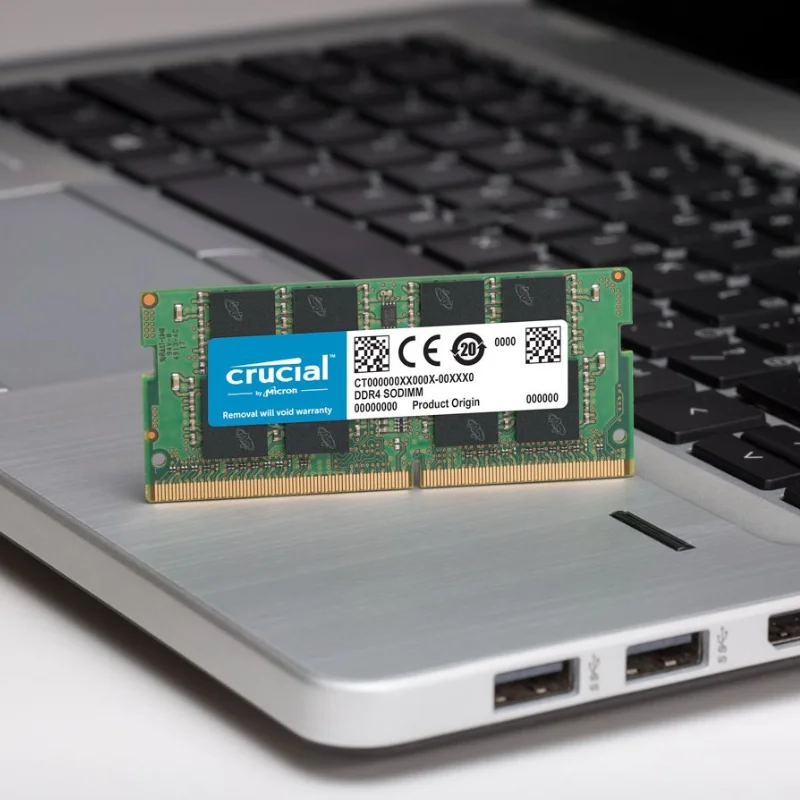
You also need to check whether your laptop uses SODIMM memory. Laptops generally use the smaller SODIMM form factor, while desktop computers typically use DIMMs.
So, do not buy RAM based on capacity alone.
What RAM Do You Need for a 4GB to 16GB Upgrade?
This depends on how your current 4GB RAM is installed.
For example, your laptop might have:
Option 1: One 4GB RAM stick
If there is an empty slot, you may be able to add a 12GB module if the laptop supports it.
However, this configuration is less common and may not be supported by every laptop.
Option 2: Two 2GB RAM sticks
You may need to remove both modules and install two larger modules.
For example, you could use 2 × 8GB RAM to reach 16GB.
Option 3: 4GB soldered RAM
Some laptops have the original 4GB soldered to the motherboard.
Depending on the laptop, you may be able to add another module. Other models have no upgradeable RAM slot.
This is why checking the exact model matters.
Should You Buy One 16GB Stick or Two 8GB Sticks?
If your laptop has two upgradeable slots, 2 × 8GB can be a good option.
Using two compatible modules can also allow the system to use dual-channel memory, depending on the laptop’s hardware and configuration.
However, there is no universal answer.
Some laptops only have one accessible slot. Others have soldered memory combined with one RAM slot.
The laptop’s specifications should determine which configuration you choose.
How to Install the New RAM
Once you have confirmed compatibility, you can prepare for installation.
First, shut down the laptop completely.
Disconnect the charger and any connected accessories. If the battery is removable, remove it according to the manufacturer’s instructions.
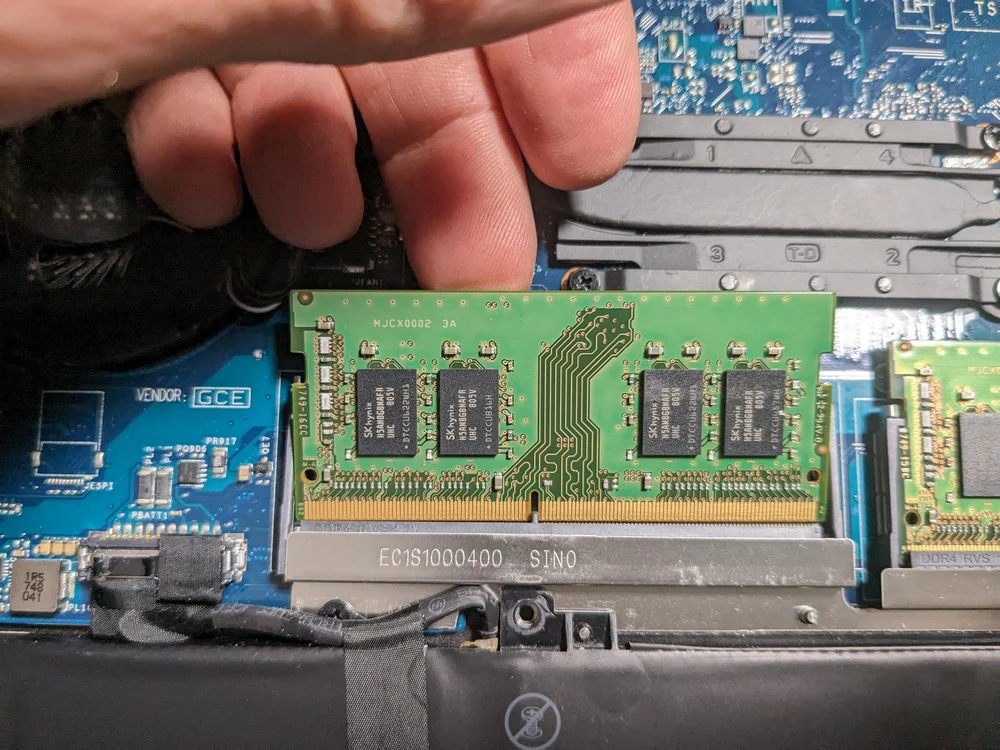
Next, open the laptop’s bottom cover carefully.
Locate the RAM slots and remove the existing module if necessary.
Then, insert the new RAM at the correct angle and press it down until the clips hold it securely.
The exact procedure varies between laptop models. Some laptops are also difficult to open without the appropriate maintenance instructions.
If you are not comfortable opening the laptop, having a technician install the RAM is a safer option.
How to Check if the 16GB RAM Upgrade Worked
After installing the RAM, turn on your laptop.
In Windows, open Task Manager and select Performance > Memory.
You should see the installed memory listed there.
If you installed 16GB but Windows shows less, do not immediately assume the RAM is faulty.
The laptop may have a hardware limitation, reserved memory, an installation issue, or another compatibility problem.
Check the laptop specifications and make sure the modules are seated correctly.
Will Upgrading From 4GB to 16GB Make Your Laptop Faster?
It can make a significant difference when your laptop is running out of memory.
With 4GB, everyday multitasking can become restrictive.
Moving to 16GB gives Windows and your applications considerably more memory to work with.
You may notice smoother multitasking, fewer slowdowns when several applications are open, and better responsiveness.
However, RAM is not the only factor affecting performance.
A slow processor or older hard drive can still limit the overall experience.
If your laptop uses an HDD, upgrading to an SSD alongside the RAM upgrade can also provide a substantial improvement.
How Much Does It Cost to Upgrade From 4GB to 16GB RAM in Kenya?
The cost depends on the RAM generation, speed, brand, and laptop model.
DDR4 and DDR5 modules have different specifications and prices. Therefore, you should identify the correct RAM before comparing prices.
Installation may also have a separate labour charge if you use a computer repair technician.
Rather than buying the cheapest 16GB module available, check compatibility first.
A compatible RAM upgrade is more important than simply choosing the largest or fastest module.
Need Help Upgrading Your Laptop RAM?
Not sure whether your laptop supports 16GB?
Before buying anything, have the laptop checked.
At Compvate, you can get help identifying your laptop’s RAM specifications and determining whether a 4GB-to-16GB upgrade is possible.
A proper compatibility check can save you from buying RAM that your laptop cannot use.
For laptop upgrades and computer support in Kenya, visit Compvate.
Final Thoughts
Upgrading from 4GB RAM to 16GB can breathe new life into a laptop that struggles with multitasking.
But the upgrade starts with compatibility.
Check the laptop’s maximum RAM capacity, available slots, RAM generation, speed, and form factor before purchasing anything.
If the laptop supports 16GB, the upgrade can be a practical way to improve everyday performance without replacing the entire machine.
Frequently Asked Questions.
It depends on the laptop.
If your laptop has an available RAM slot and supports the required configuration, you may be able to add memory.
For multitasking, 16GB provides more memory headroom than 8GB.
It can be particularly useful when running several applications simultaneously.
Find your exact laptop model and check its specifications.
You need to confirm the RAM generation, capacity, speed, and form factor before purchasing.
No.
DDR4 and DDR5 use different physical and electrical specifications, so they are not compatible.