
Common Laptop Problems and How to Fix Them Before Visiting a Repair Shop. Leave a comment
Laptops have become an essential part of our daily lives, whether for work, education, business, or entertainment. However, like any electronic device, they can develop problems over time. The good news is that not every issue requires professional repair. Many common laptop problems can be resolved with simple troubleshooting techniques that anyone can perform.
In this guide, we’ll explore the most common laptop problems, explain their possible causes, and provide practical solutions you can try before visiting a repair shop. If these steps don’t solve the issue, Compvate’s experienced technicians are ready to help with professional diagnostics and repair services.
1. Laptop Running Slow
A slow laptop is one of the most common complaints among users. It can make even basic tasks frustrating.
Possible Causes
- Too many startup programs
- Low storage space
- Malware or viruses
- Outdated operating system
- Insufficient RAM
How to Fix It
- Restart your laptop.
- Remove unnecessary startup applications.
- Delete temporary files and unused programs.
- Scan your computer using trusted antivirus software.
- Install the latest Windows or macOS updates.
- Free up at least 20% of your storage space.
If your laptop remains slow after these steps, it may benefit from an SSD upgrade or additional RAM.
2. Laptop Won’t Turn On
Few things are more alarming than pressing the power button and getting no response.
Possible Causes
- Dead battery
- Faulty charger
- Damaged power button
- Motherboard failure
How to Fix It
- Verify the charger is securely connected.
- Try another compatible charger.
- Remove the battery (if removable) and connect directly to power.
- Hold the power button for 15 seconds to discharge residual electricity.
- Check whether charging indicators light up.
If the laptop still won’t power on, professional diagnosis is recommended.
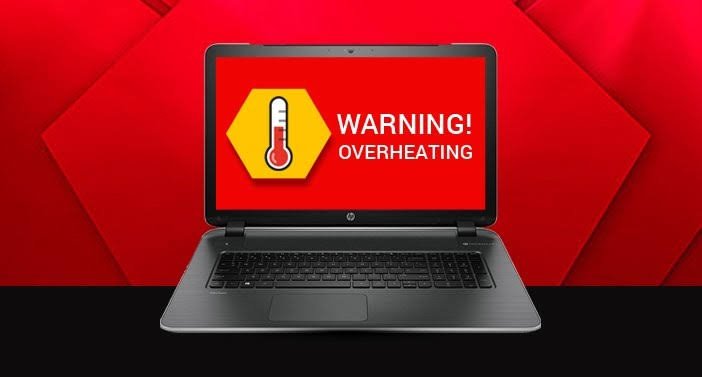
3. Overheating Laptop
Excessive heat can reduce performance and shorten your laptop’s lifespan.
Common Causes
- Dust buildup
- Blocked air vents
- Faulty cooling fan
- Running demanding software continuously
How to Fix It
- Clean the ventilation openings.
- Place the laptop on a hard, flat surface.
- Close unnecessary applications.
- Use a cooling pad for improved airflow.
- Keep your operating system and drivers updated.
Regular cleaning helps prevent overheating and hardware damage.
4. Battery Drains Too Quickly
Laptop batteries naturally lose capacity over time, but rapid battery drain may indicate other issues.
Solutions
- Reduce screen brightness.
- Enable Battery Saver mode.
- Turn off Bluetooth and Wi-Fi when not needed.
- Close background applications.
- Check battery health using your operating system’s diagnostic tools.
If the battery no longer holds an adequate charge, replacing it is often the best solution.
5. Laptop Screen Is Blank or Flickering
Display issues can occur because of software settings or hardware failures.
Troubleshooting Steps
- Restart the laptop.
- Adjust brightness settings.
- Connect an external monitor.
- Update or reinstall graphics drivers.
- Check for physical screen damage.
Persistent flickering or a blank display may require screen replacement or internal hardware repair.
6. Laptop Keyboard Not Working
Keyboard problems can affect productivity but are sometimes easy to resolve.
Try These Fixes
- Restart your computer.
- Clean debris beneath the keys.
- Reinstall keyboard drivers.
- Test an external USB keyboard.
- Disable Filter Keys in Windows Accessibility settings.
Liquid spills or physical damage typically require professional repair.
7. Laptop Keeps Freezing
Frequent freezing interrupts work and often points to software or hardware problems.
Possible Fixes
- Install pending operating system updates.
- Run a malware scan.
- Check available storage.
- Update device drivers.
- Run memory diagnostics.
If freezing continues, your hard drive or RAM may need testing or replacement.
8. Wi-Fi Keeps Disconnecting
An unstable internet connection isn’t always caused by your internet service provider.
How to Fix It
- Restart your router.
- Forget and reconnect to the Wi-Fi network.
- Update wireless network drivers.
- Disable power-saving mode for the Wi-Fi adapter.
- Test another wireless network.
If only your laptop experiences connection issues, the wireless adapter may require servicing.
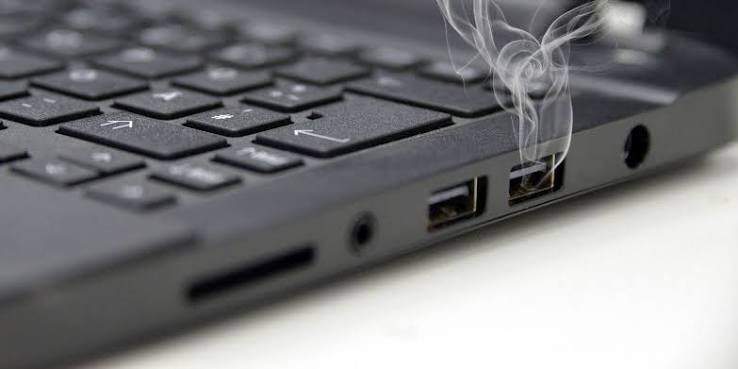
9. USB Ports Not Working
When USB devices aren’t recognised, productivity can quickly suffer.
Solutions
- Test another USB device.
- Restart the laptop.
- Update USB drivers.
- Check Device Manager for errors.
- Clean dust from the USB ports carefully.
Damaged USB ports usually require replacement by a qualified technician.
10. Strange Noises from the Laptop
Grinding, clicking, or buzzing sounds shouldn’t be ignored.
Possible Causes
- Failing cooling fan
- Damaged hard drive
- Loose internal components
What You Should Do
- Back up important files immediately.
- Stop using the laptop if clicking noises continue.
- Have the hardware inspected before further damage occurs.
Preventive Maintenance Tips
Preventive maintenance can significantly extend your laptop’s lifespan.
- Keep your operating system updated.
- Install reliable antivirus software.
- Avoid eating or drinking near your laptop.
- Clean air vents regularly.
- Store the laptop in a protective case.
- Back up important data frequently.
- Avoid exposing the device to excessive heat or moisture.
When Should You Visit a Repair Shop?
While many laptop issues can be fixed at home, some situations require professional assistance.
Visit a trusted repair specialist if:
- Your laptop won’t power on.
- The screen is physically damaged.
- Liquid has spilled onto the laptop.
- The motherboard has failed.
- The laptop overheats even after cleaning.
- Data recovery is required.
- You hear unusual clicking or grinding noises.
Ignoring these symptoms may lead to more extensive and expensive repairs.
Why Choose Compvate for Laptop Repairs?
At Compvate, we understand how important your laptop is for work, education, and everyday life.
Our certified technicians provide accurate diagnostics, genuine replacement parts, and reliable repair services for leading laptop brands including HP, Dell, Lenovo, ASUS, Acer, Apple MacBook, MSI, Toshiba, and many others.
Whether you need a screen replacement, battery replacement, keyboard repair, motherboard repair, SSD upgrade, virus removal, or complete system diagnostics, Compvate is committed to restoring your device quickly and professionally.
Frequently Asked Questions (FAQs)
Yes. Cleaning unnecessary files, uninstalling unused software, updating your operating system, and scanning for malware can significantly improve performance.
If your battery drains unusually fast, won’t charge fully, or shuts down unexpectedly, it may be time for a replacement.
Dust buildup, blocked air vents, ageing thermal paste, or heavy workloads are common causes of overheating.
If the repair cost is significantly lower than purchasing a new device and the laptop still meets your needs, repairing it is often the more economical option.
For most users, a professional cleaning and health check every 12–18 months helps maintain optimal performance and prolong the laptop’s lifespan.